
トップページは言わばサイトの顔みたいなもので、一瞬で目を引いて立ち止まらせる必要があると考えています。ヒーロー画像するだけでも十分ですが、画像の上にキャッチコピーを配置することで「お、このサイトいい感じ。もう少し見てみよう」と思わせることに繋がります。
SWELLだと画像配置とキャッチコピーを被せるだけなら標準機能で簡単にできます。
まずはそこからやってみましょう。
ヒーロー画像の配置
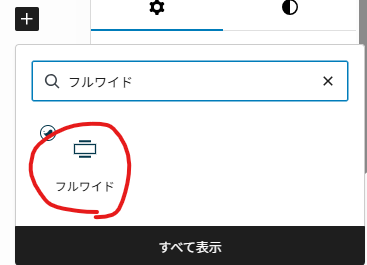
まず初めにフルワイドブロックを置きましょう。
画像ブロックを置いて画像を選択しましょう。
画像の解像度は高めの方が綺麗に表示されるので、1000px以上のを使うと良いでしょう。
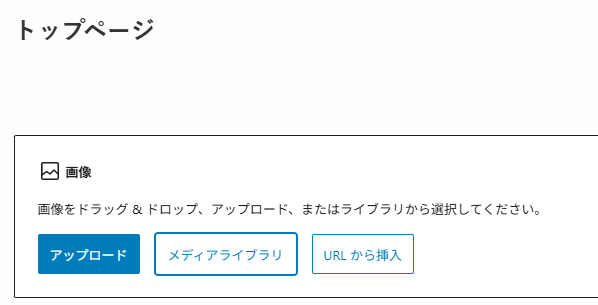
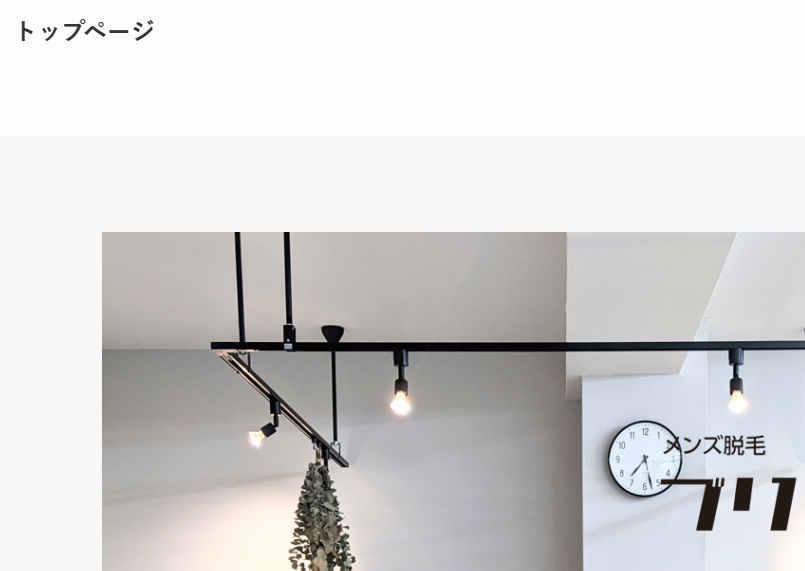
画像を配置しました。ここまではすんなりいくと思います。
キャッチコピーを配置
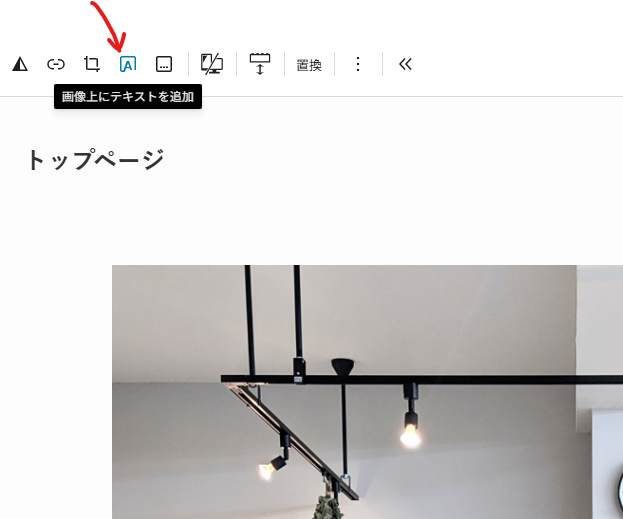
配置した画像を選択し、”画像上にテキストを追加”をクリックします。
もちろん、そのまま文字を書き込んでもOKです。文字の色や大きさもSWELL標準機能で変更できますね。
ぼくは一段回ひねりたくて、文字の背景装飾やアニメーションを付けていきたいと思います。
ブロックを選択し、カスタムHTMLをクリックします。
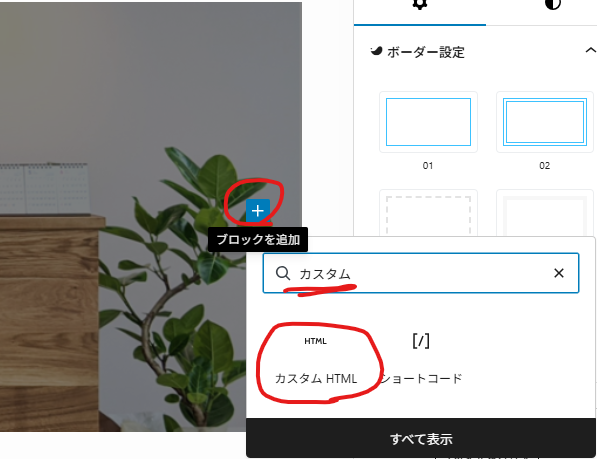
キャッチコピーと装飾のコードを書きます。
ここは説明すると大変なので、詳しく知りたい方はChatGPT・Gemini・Claudeなどに解説してもらってください。
<div class="fv-wrap">
    <div class="circle circle1"></div>
    <div class="circle circle2"></div>
    <div class="catch-text">
        <p>
            その肌が、<br>
            新しい自信になる。
        </p>
    </div>
</div>

<style>
/* ---------- 全体 ---------- */
.fv-wrap {
    position: relative;
    width: 100%;
    height: 500px;
}

/* ---------- 円の基本スタイル ---------- */
.circle {
    position: absolute;
    border-radius: 50%;
    top: 50%;
    left: 50%;
    transform: translate(-50%, -50%);
}

/* ---------- 円1(中央白線) ---------- */
.circle1 {
    width: 550px;
    height: 550px;
    border: 1px solid rgba(255, 255, 255, 0.8);
    z-index: 2;
    opacity: 0;
    animation: fadeCircle 1.4s ease-out forwards;
    animation-delay: 2.0s;
}

/* ---------- 円2(右側グレー) ---------- */
.circle2 {
    width: 550px;
    height: 550px;
    top: 53%;
    transform: translate(calc(-50% + 20px), -50%); /* ← 統一済み */
    background-color: rgba(70,70,70,0.55);
    z-index: 1;
    opacity: 0;
    animation: fadeCircle2 1.6s ease-out forwards;
    animation-delay: 2.5s;
}

/* ---------- キャッチコピー ---------- */
.catch-text {
    width: 100%;
    max-width: 600px;
    position: absolute;
    z-index: 3;
    top: 50%;
    left: 57%;
    transform: translate(-60%, -50%);
    color: #fff;
    font-size: 38px;
    font-weight: 600;
    line-height: 1.4;
    text-align: center;
    opacity: 0;
    animation: fadeTextFix 1.4s ease-out forwards;
    animation-delay: 4.1s;
}

/* ---------- アニメーション ---------- */
@keyframes fadeCircle {
    0% { opacity: 0; transform: translate(-50%, -50%) scale(0.9); }
    100% { opacity: 1; transform: translate(-50%, -50%) scale(1); }
}

@keyframes fadeCircle2 {
    0% {
        opacity: 0;
        transform: translate(calc(-50% + 20px), -50%) scale(0.9);
    }
    100% {
        opacity: 1;
        transform: translate(calc(-50% + 20px), -50%) scale(1);
    }
}

@keyframes fadeTextFix {
    0% { opacity: 0; }
    100% { opacity: 1; }
}


/* ===============================
   ▼ レスポンシブ対応
   =============================== */

/* タブレット(1024px 以下) */
@media (max-width: 1024px) {
    .circle1, .circle2 { width: 380px; height: 380px; }
    .catch-text { font-size: 25px; transform: translate(-55%, -50%); }
}

/* 小さめタブレット(768px 以下) */
@media (max-width: 768px) {

    .circle1, .circle2 {
        width: 300px;
        height: 300px;
    }

    /* 左に寄りすぎ防止:中央から10pxだけ右 */
    .circle2 {
        top: 51%;
        left: 48%;
        transform: translate(calc(-51% + 10px), -50%);
    }

    .catch-text {
        font-size: 20px;
        width: 100%;
        left: 50%;
        transform: translate(-50%, -50%);
    }
}

/* スマホ(480px 以下) */
@media (max-width: 480px) {
    .circle1, .circle2 { width: 250px; height: 250px; }
    .circle2 {
        top: 51%;
        left: 46%;
        transform: translate(calc(-50% + 2px), -50%); }
    .catch-text {
        font-size: 17px;
        width: 100%;
        left: 50%;
        transform: translate(-50%, -50%);
    }
}

/* 超小型スマホ(360px 以下) */
@media (max-width: 360px) {
    .circle1, .circle2 { width: 220px; height: 220px; }
    .circle2 {
        top: 51%;
        left: 46%;
        transform: translate(calc(-50% + 2px), -50%); }
    .catch-text {
        font-size: 15px;
    }
}
</style>
プレビューするとこんなイメージになります。
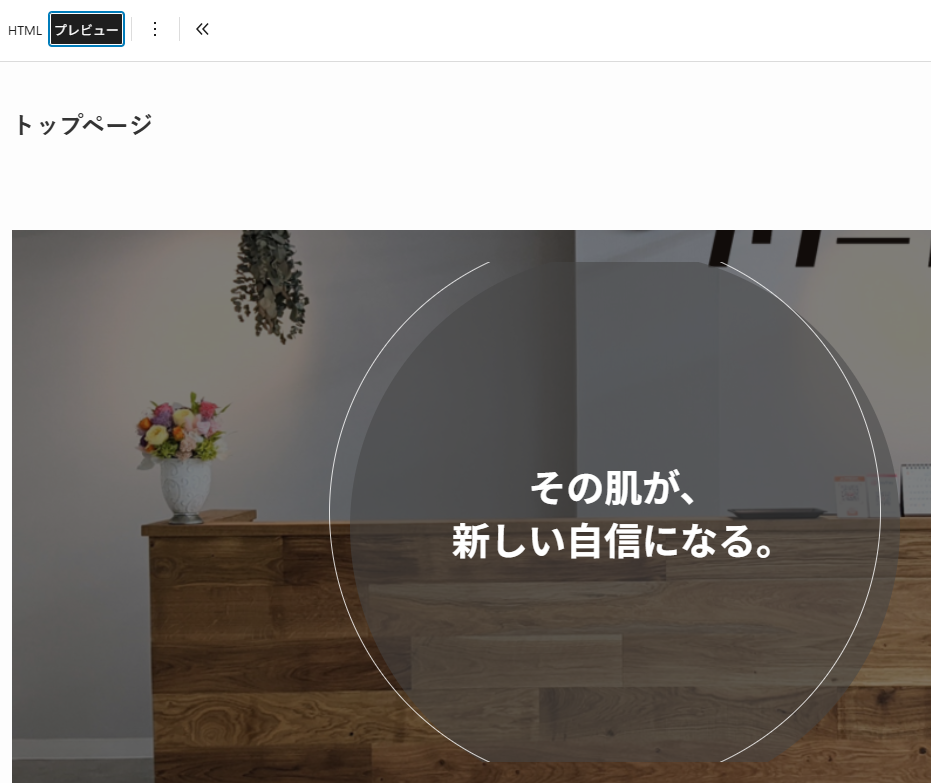
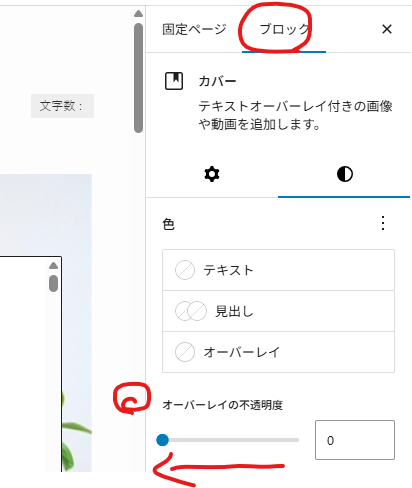
キャッチコピーの背景画像が暗いと感じたら、オーバーレイの不透明度を下げてください。
画像のサイズをモバイルで最適化する
画像によっては、サービス名や店舗名を入れることもありますよね?
モバイルで表示するとこうして見切れてしまう場合があります。
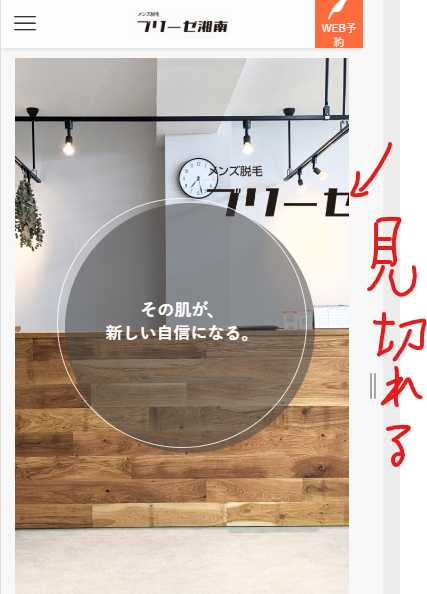
タブレットやモバイルで最適な画像を表示させるには、カスタムCSSを適用します。いま編集しているページの下に行くと”カスタムCSS&JS”があります。
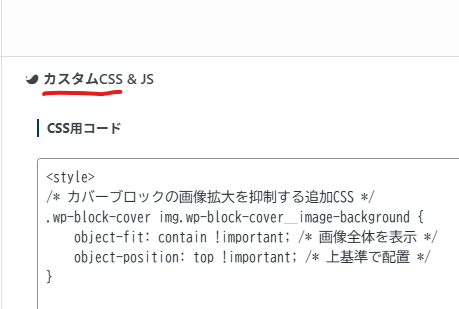
そこに、こちらのCSSコードを追記します。解説は割愛します。
<style>
/* カバーブロックの画像拡大を抑制する追加CSS */
.wp-block-cover img.wp-block-cover__image-background {
    object-fit: contain !important; /* 画像全体を表示 */
    object-position: top !important; /* 上基準で配置 */
}

/* TOPカバー画像の調整 */
/* ---------- カバーブロックの余白除去 ---------- */
.wp-block-cover.is-light {
    /* 高さをvwで固定せず、画像の比率(1:1)を保つ */
    min-height: auto !important;
    aspect-ratio: 1079 / 1080; /* 画像の実際のサイズを指定 */
    width: 100% !important;
    padding: 0 !important; /* SWELLのデフォルト余白を消去 */
}

.wp-block-cover img.wp-block-cover__image-background {
    /* containだと隙間が出るので、coverに戻して100%フィットさせる */
    object-fit: cover !important;
    width: 100% !important;
    height: 100% !important;
}

.fv-wrap {
    /* ここも親要素(cover)と同じ高さになるように設定 */
    height: 100%;
    min-height: inherit;
}

/* PC(1024px以上)の時は、今までの「迫力ある高さ」を維持する */
@media (min-width: 1024px) {
    .wp-block-cover.is-light {
        aspect-ratio: auto; /* PCでは比率固定を解除 */
        min-height: 900px !important;
    }
}
</style>
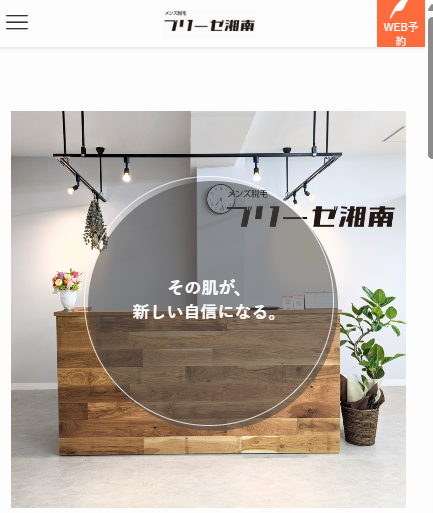
CSSを適用したあと、モバイルで表示させても画像がシュッとなりましたね?
”ブリーゼ湘南”の背景も上手く収まりました。
※キャッチコピーの文言は画像と異なる場合があります。
ぜひ、ブリーゼ湘南のサイトでも実際に見てみてください。


コメント